Home Screen
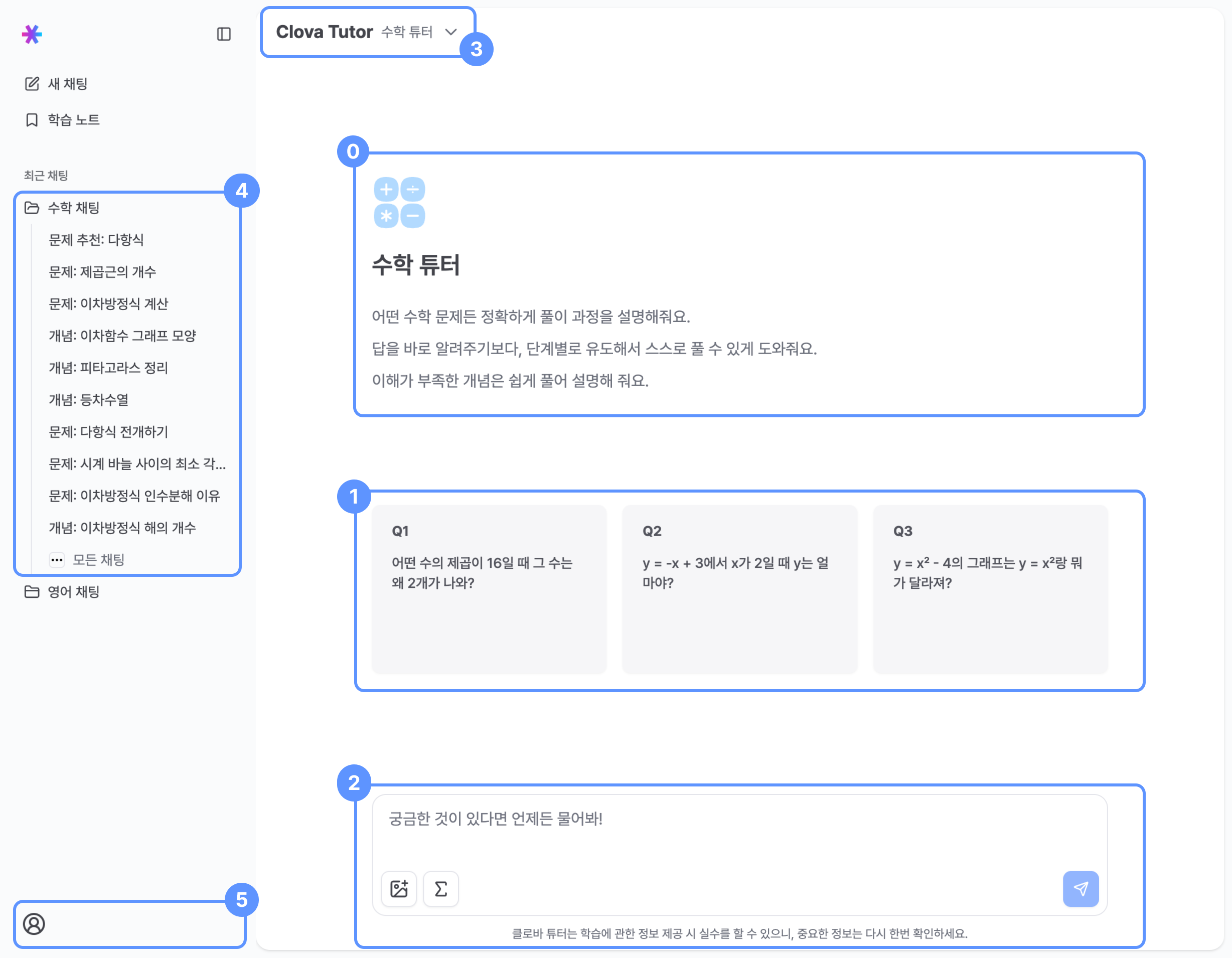
0 Math Tutor essential features
When you first enter the application, an introductory guide explains the core features of the Math Tutor.
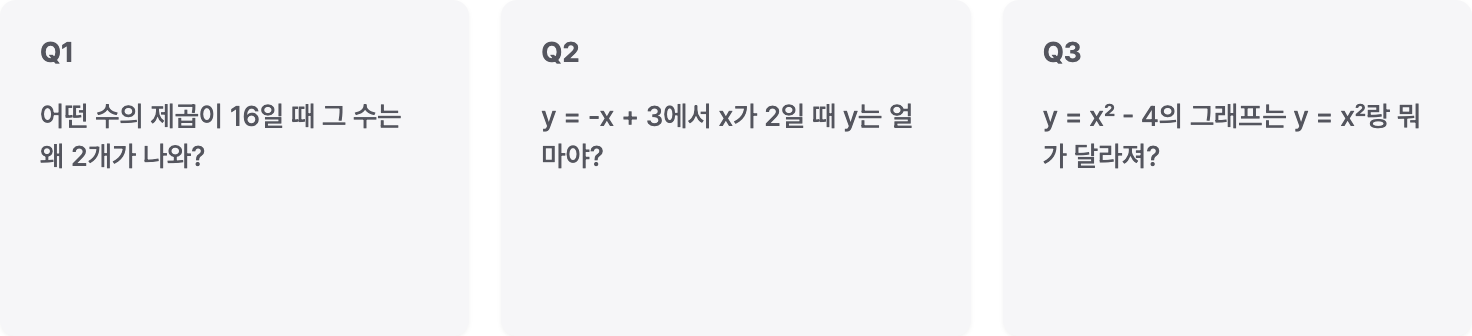
1 Example questions
You can start a conversation by selecting predefined example questions without typing your own.
Example questions help first-time users become familiar with how to interact with the tutor.
2 Chat input
Attaching problem images

- You can upload up to one problem image.
- Image requirements:
- Aspect ratio between 1:5 and 5:1
- File size under 20MB
- Longest side up to 2240px, shortest side at least 4px
- Supported formats: jpeg, jpg, png
- The tutor analyzes the image and responds to your question.
- Images copied to the clipboard can be pasted using
Ctrl + V.
Inserting math input blocks

Click the math input block button to activate the math keyboard and enter mathematical expressions.
3 Subject tutor selection
- Select between Math and English tutors using the dropdown.
- For accurate solutions and explanations, choose the tutor that matches the subject of your question.
4 Chat history
- View the 10 most recent chat rooms in the sidebar.
- The first message sent in a chat room becomes the chat room title.
- Click All Chats to view the full chat history.
Badge meanings
- Drafting: A message is currently being written in the chat input
- Learning Problem Recommended: The tutor has recommended learning problems in this chat room
Goal in progress
: A learning goal has been created in this chat room- Blinking chat room title: The tutor is currently generating a response
5 User information and settings
Access user information, log out, or switch the application theme (light / dark mode).